
A slow laptop, unexpected pop-ups, unknown programs launching at startup, or browsers redirecting to suspicious websites—these are often signs of malware infection. While antivirus software is typically the first recommendation, there are situations where antivirus tools are unavailable, expired, corrupted, or even disabled by the malware itself. In such cases, removing a virus manually becomes necessary.
According to guidance published by the Federal Trade Commission and security documentation from Microsoft, many infections can be mitigated using built-in operating system tools when handled carefully. This guide explains, in detail, how to remove a virus from a Windows laptop without third-party antivirus software, using safe, proven, and system-level methods.
Understanding What a “Virus” Really Means
The term “virus” is often used broadly, but modern threats include trojans, spyware, ransomware, worms, adware, and rootkits. The Cybersecurity and Infrastructure Security Agency defines malware as any software intentionally designed to cause damage or unauthorized access.
Common symptoms include:
- Sluggish performance
- High CPU usage from unknown processes
- Random pop-ups
- Browser homepage changes
- Files disappearing or being encrypted
- Security settings disabled
Before removing anything, the first priority is containment.
Step 1: Disconnect from the Internet Immediately
If a laptop is infected, disconnect Wi-Fi or unplug the Ethernet cable. Malware often communicates with external servers to download additional payloads or transmit data.
The National Institute of Standards and Technology recommends isolating affected systems to prevent lateral spread and data exfiltration. Disconnecting ensures:
- The malware cannot spread across networks
- Sensitive information stops transmitting
- Remote attackers lose control access
Once disconnected, proceed with internal cleanup.
Step 2: Boot into Safe Mode
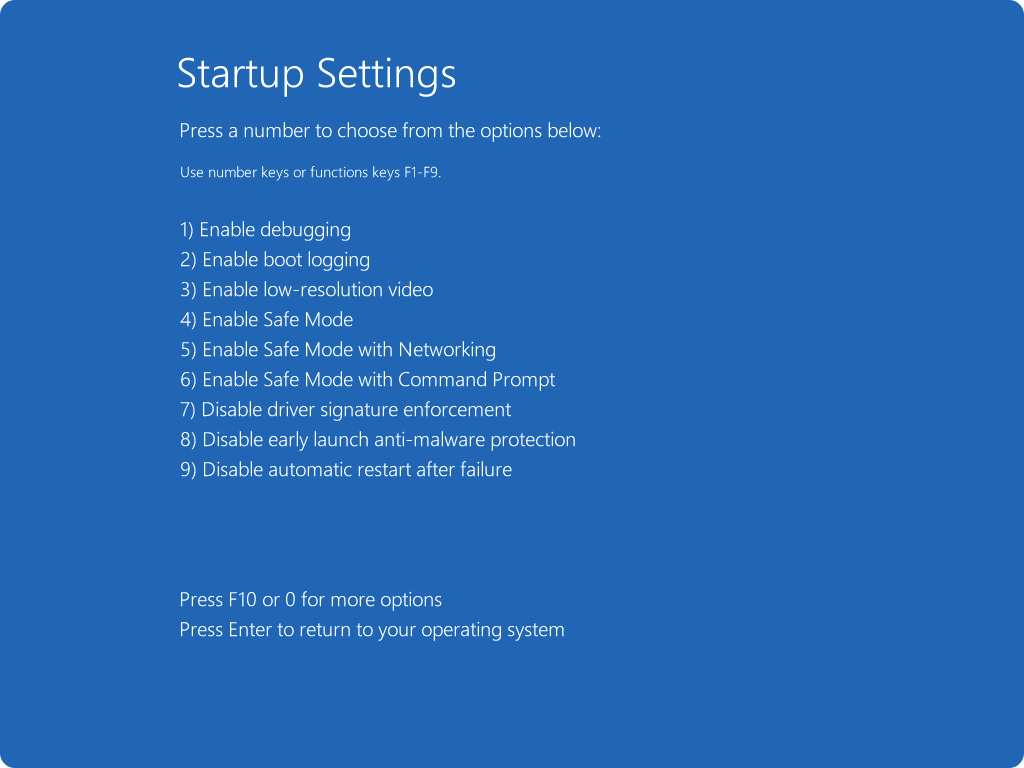
Safe Mode loads Windows with minimal drivers and startup programs. Most malware does not activate in this environment.
To enter Safe Mode in Windows 10/11:
- Press Shift + Restart
- Choose Troubleshoot
- Select Advanced options
- Click Startup Settings
- Press F4 (Safe Mode)
Microsoft’s official Windows recovery documentation explains this process in detail and confirms Safe Mode as a primary troubleshooting step for system infections.
Once in Safe Mode, begin identifying suspicious activity.
Step 3: Use Task Manager to Identify Suspicious Processes
Press Ctrl + Shift + Esc to open Task Manager.
Look for:
- Unknown program names
- High CPU or memory usage
- Random character strings
- Duplicate processes with odd names
Right-click suspicious processes and choose Open File Location. Do not delete system processes. If unsure, compare process names using Microsoft’s official process documentation or refer to the Malwarebytes threat database for verification.
If confirmed malicious:
- End the task
- Navigate to its file location
- Delete the file permanently (Shift + Delete)
Be cautious. Removing essential system files can cause instability.
Step 4: Uninstall Suspicious Programs from Control Panel
Malware often installs as a program.
Navigate to:
Control Panel → Programs → Uninstall a Program
Look for:
- Recently installed unknown software
- Programs without publishers
- Applications with strange names
If uncertain about a program, verify using security advisories from Kaspersky or Bitdefender before removal.
Uninstall suspicious entries and restart back into Safe Mode.
Step 5: Disable Malicious Startup Entries
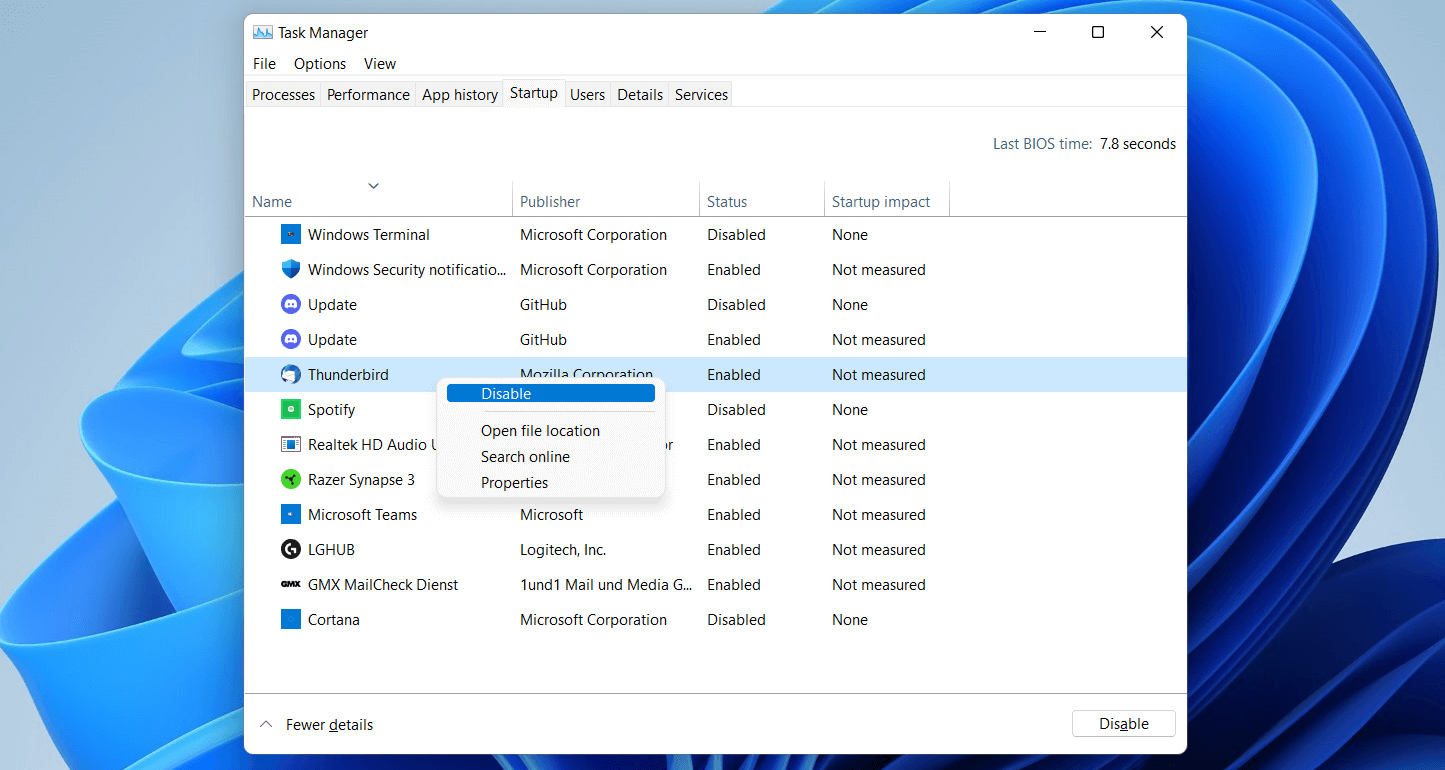
Malware often persists by launching at startup.
Open Task Manager → Startup tab.
Disable:
- Unknown publishers
- Suspicious program names
- Recently added entries
For deeper inspection:
- Press Win + R
- Type regedit
- Navigate to:
HKEY_LOCAL_MACHINE\Software\Microsoft\Windows\CurrentVersion\Run
Delete suspicious entries referencing malware files.
Registry editing should be done carefully. Microsoft’s Windows registry documentation advises creating a restore point before making changes.
Step 6: Use System Restore (If Enabled)
If a restore point exists before infection:
- Search “System Restore”
- Select “Restore system files and settings”
- Choose a restore point dated before symptoms began
According to official Windows recovery resources, System Restore reverts system files, drivers, and registry settings without affecting personal files.
This is one of the safest manual methods available.
Step 7: Run Built-in Windows Defender (Offline Scan)
Even if third-party antivirus is unavailable, Windows includes Microsoft Defender.
Navigate to:
Settings → Privacy & Security → Windows Security → Virus & Threat Protection → Scan Options → Microsoft Defender Offline Scan
Microsoft Defender Offline reboots the system and scans before Windows fully loads, increasing detection capability against rootkits and hidden malware.
Security experts at AV-TEST consistently rank Microsoft Defender as a strong baseline protection tool.
Step 8: Use Command Prompt to Repair System Files
Corrupted system files may allow malware persistence.
Open Command Prompt as Administrator and run:
sfc /scannow
Then:
DISM /Online /Cleanup-Image /RestoreHealth
Microsoft documents both tools as official Windows repair utilities. These commands:
- Repair corrupted files
- Restore system integrity
- Replace damaged components
This step ensures malware hasn’t modified essential Windows files.
Step 9: Clear Temporary Files
Temporary files can hide malicious executables.
Press Win + R
Type:
%temp%
Delete all contents inside the folder.
Then use Disk Cleanup:
Search → Disk Cleanup → Select drive → Clean temporary files.
This removes potential hidden malware fragments.
Step 10: Reset Web Browsers
Browser hijackers are common.
Reset browsers by:
- Removing unknown extensions
- Restoring default homepage
- Clearing cookies and cache
Official support documentation from major browsers recommends full resets when persistent redirects occur.
If infection persists after all steps, advanced intervention is required.
When Manual Removal Is Not Enough
Some threats, particularly ransomware or rootkits, embed deeply in the system. The Europol warns that advanced ransomware can evade manual detection.
In such cases:
- Backup important files (if safe)
- Perform a full Windows reset
- Reinstall Windows using official media
This ensures complete system cleansing.
Comparison Table: Manual Virus Removal vs Antivirus Software
Manual Removal vs Antivirus Software
| Feature | Manual Removal | Antivirus Software |
|---|---|---|
| Cost | Free | Often Paid |
| Ease of Use | Technical | User-Friendly |
| Detection Accuracy | Depends on skill | Automated scanning |
| Rootkit Removal | Limited | Advanced tools available |
| Real-Time Protection | No | Yes |
| Risk of Mistakes | Higher | Lower |
| Time Required | High | Moderate |
Manual removal works for basic infections but lacks automation and real-time protection.
Preventing Future Infections
Removing malware is only part of the solution. Prevention is critical.
Recommended practices include:
- Keeping Windows updated
- Enabling built-in firewall
- Avoiding pirated software
- Using strong passwords
- Enabling multi-factor authentication
- Regular backups
Security frameworks from the International Organization for Standardization emphasize layered security strategies to reduce risk exposure.
Routine system maintenance significantly lowers infection chances.
Frequently Asked Questions
Can a virus be removed without any antivirus software?
Yes, many standard infections can be removed using Safe Mode, Task Manager, startup control, system restore, and Windows Defender Offline Scan. However, advanced malware may require full system reinstallation.
Is Safe Mode effective against all malware?
Safe Mode disables most startup programs, making it effective against common malware, but sophisticated rootkits may still persist.
Will System Restore remove a virus completely?
System Restore can eliminate infections that rely on modified system settings. It may not remove malicious files stored outside protected areas.
What if the virus disables Task Manager?
Boot into Safe Mode or use Command Prompt to terminate suspicious processes. In severe cases, offline scanning or Windows reset is necessary.
Can malware survive a Windows reset?
A standard reset that removes everything typically eliminates malware. However, infected backup files can reintroduce it.
How do I know if malware is gone?
Indicators include:
- No unusual CPU spikes
- No unexpected pop-ups
- Normal browser behavior
- Startup entries restored to known programs
For confirmation, running a full Windows Defender scan is recommended.
Final Thoughts
Removing a virus from a laptop without antivirus software is possible when approached methodically and carefully. The process requires isolating the system, entering Safe Mode, identifying suspicious processes, removing malicious programs, repairing system files, and verifying integrity through built-in security tools.
Manual removal demands attention to detail and cautious handling of system files and registry entries. While effective for many standard infections, it is not a substitute for long-term security protection. Built-in tools like Microsoft Defender provide essential safeguards, but layered protection and responsible digital habits remain the strongest defense.
A clean system is not just about removing malware—it is about maintaining ongoing vigilance. Keeping software updated, avoiding suspicious downloads, and practicing safe browsing significantly reduce future risks. When handled correctly, even a compromised laptop can be restored to full functionality without third-party antivirus software, ensuring security and stability moving forward.

