
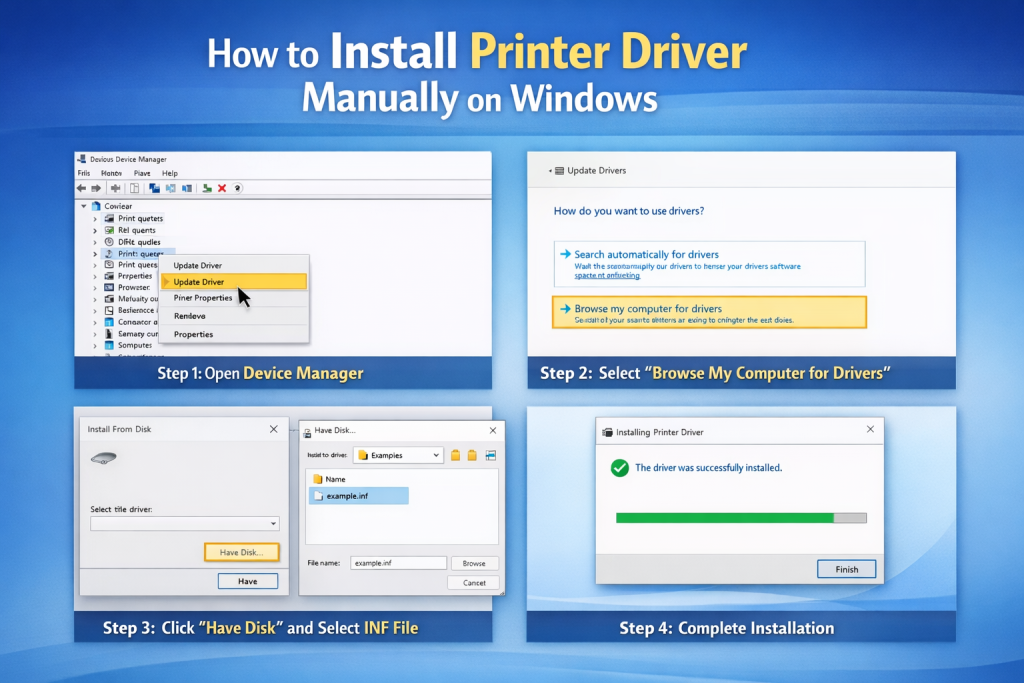
Installing a printer should be simple, yet in real-world environments—home offices, schools, shared networks, and business systems—it often requires manual driver installation. Automatic setup sometimes fails due to outdated drivers, network restrictions, missing Windows updates, or unsupported legacy devices. Understanding how to manually install a printer driver on Windows gives complete control over the process and prevents common installation errors.
This comprehensive guide explains every method, scenario, and troubleshooting step needed to manually install a printer driver on Windows systems, whether using Windows 10 or Windows 11 from Microsoft.
Understanding Printer Drivers and Why Manual Installation Matters
A printer driver is specialized software that allows Windows to communicate with a specific printer model. Without the correct driver, the operating system cannot interpret printing commands correctly, resulting in blank pages, error messages, or missing features.
Manual installation becomes necessary in situations such as:
• Windows does not automatically detect the printer
• The wrong generic driver is installed
• The printer is connected over a network
• You are installing an older printer model
• You need advanced features unavailable in default drivers
• Internet access is restricted
Windows includes basic built-in drivers, but manufacturers like HP, Canon, and Epson provide optimized drivers that unlock full functionality such as duplex printing, scanning, and ink monitoring.
Before You Begin: Preparation Checklist
Proper preparation prevents installation errors and compatibility problems. Before installing a printer driver manually, ensure:
• You know your Windows version (32-bit or 64-bit)
• You have downloaded the correct driver for your printer model
• You have administrator privileges
• The printer is powered on and connected (USB or network)
• Antivirus software is not blocking installation
To check your Windows version:
Settings → System → About → System Type
Using the wrong driver architecture is one of the most common causes of installation failure.
Method 1: Install Printer Driver Using Device Manager
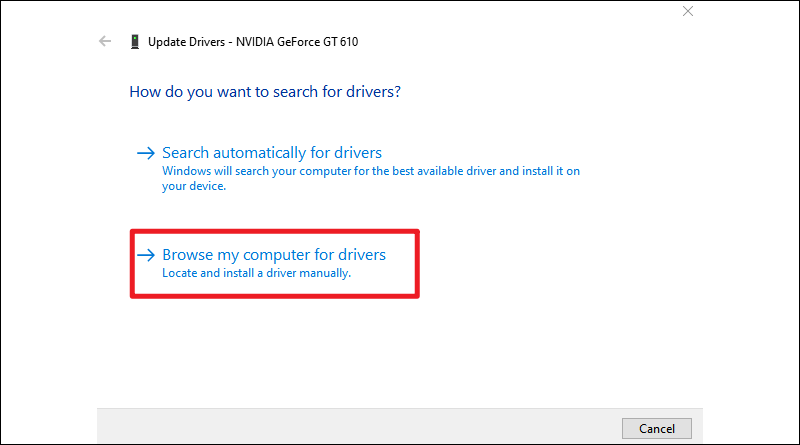
Device Manager provides direct control over hardware drivers. This method is especially useful when Windows detects the printer as an unknown device.
Step-by-Step Process
- Press Windows + X and select Device Manager
- Locate your printer under “Other Devices” or “Print queues”
- Right-click the printer and select Update driver
- Choose “Browse my computer for drivers”
- Click “Let me pick from a list of available drivers”
- Select “Have Disk”
- Browse to the downloaded driver folder
- Select the .inf file
- Click Next and complete installation
This method forces Windows to install the exact driver file you provide rather than searching online.
Method 2: Install Printer Driver via Control Panel

Using Control Panel allows complete manual setup, especially useful when adding a network printer.
Step-by-Step Process
- Open Control Panel
- Select Devices and Printers
- Click “Add a printer”
- When Windows fails to detect the printer, click “The printer that I want isn’t listed”
- Choose “Add a local printer or network printer with manual settings”
- Select the appropriate port (USB001 for USB, TCP/IP for network)
- Click “Have Disk”
- Browse to the driver location
- Select the .inf file
- Complete the wizard
Choosing the correct port is critical. For network printers, selecting Standard TCP/IP Port ensures proper communication.
Method 3: Installing a Network Printer Driver Manually
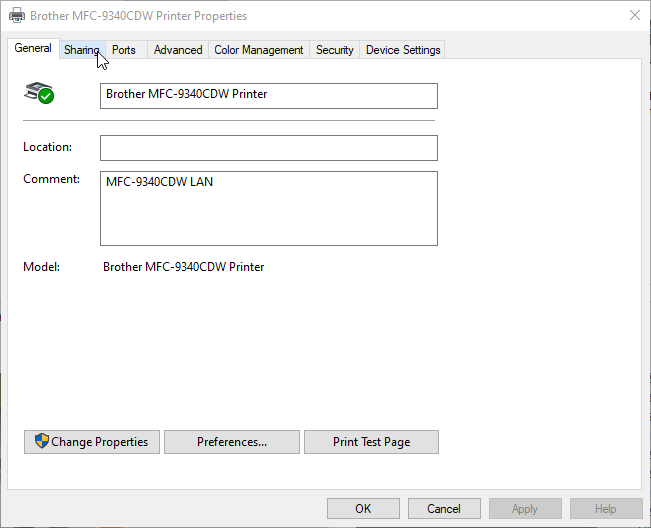
Network printers require IP-based configuration when automatic detection fails.
Steps to Install via IP Address
- Open Devices and Printers
- Click Add a printer
- Select “The printer that I want isn’t listed”
- Choose “Add a printer using a TCP/IP address or hostname”
- Enter the printer’s IP address
- Uncheck “Query the printer automatically”
- Click Have Disk and load the driver
To find the printer’s IP address:
• Check router admin panel
• Print network configuration page from printer
• Check printer display panel
This approach is widely used in offices and shared environments.
Method 4: Install Driver Using Printer Management (Advanced Method)
For professional or enterprise systems, Printer Management offers deeper administrative control.
- Press Windows + R
- Type printmanagement.msc
- Expand Print Servers
- Right-click Drivers
- Select Add Driver
- Choose architecture (x64 or x86)
- Use Have Disk option
This method is recommended for IT administrators managing multiple printers.
Installing Older or Legacy Printer Drivers
Older printers may not have Windows 11-specific drivers. In such cases:
• Install Windows 10 driver in compatibility mode
• Use generic PCL or PostScript drivers
• Enable Windows Optional Features for legacy printing
To enable legacy features:
Control Panel → Programs → Turn Windows features on or off → Enable Print and Document Services
Compatibility mode installation:
Right-click driver setup → Properties → Compatibility → Run in compatibility mode for Windows 10
Comparison Table: Automatic vs Manual Printer Driver Installation
Manual vs Automatic Installation – Which is Better?
| Feature | Automatic Installation | Manual Installation |
|---|---|---|
| Ease of Use | Very Easy | Moderate |
| Control Over Driver Version | Limited | Full Control |
| Best for | New Printers | Older or Network Printers |
| Risk of Wrong Driver | Medium | Low (if selected properly) |
| Advanced Feature Access | Sometimes Limited | Full Feature Access |
| Troubleshooting Flexibility | Basic | Advanced |
Manual installation provides greater precision, especially in professional environments.
Common Errors and How to Fix Them
1. Driver Not Compatible with This Version of Windows
Ensure correct 32-bit or 64-bit version. Re-download official driver.
2. Printer Driver Unavailable
Remove existing printer:
Devices and Printers → Remove Device → Restart → Reinstall manually.
3. Windows Cannot Find Driver
Verify that the .inf file exists inside extracted folder. Do not select the setup.exe file when using “Have Disk.”
4. Access Denied Error
Run installer as Administrator.
5. Printer Shows Offline
Check:
• Network cable
• IP address
• Restart print spooler
To restart spooler:
Press Windows + R → services.msc → Print Spooler → Restart
Security Considerations When Installing Printer Drivers
Only download drivers from official manufacturer websites. Avoid third-party driver websites that may include bundled software or outdated files. Always verify:
• Correct printer model number
• Exact Windows version
• Digital signature of driver
Windows may show a warning about unsigned drivers. Installing unsigned drivers should only be done if absolutely necessary and from a trusted source.
Best Practices for Long-Term Printer Stability
To maintain printer stability:
• Keep Windows updated
• Avoid installing multiple drivers for the same printer
• Remove unused printers
• Periodically clean print queue
• Backup working driver files
Organizations often store validated driver packages to avoid future compatibility issues.
Frequently Asked Questions (FAQ)
Why does Windows fail to detect my printer automatically?
Automatic detection may fail due to network restrictions, outdated Windows updates, incorrect drivers, or firewall settings blocking communication.
Can I install a printer driver without internet access?
Yes. Download the driver on another computer and transfer it using a USB drive. Manual installation works fully offline.
What is an INF file in printer drivers?
The INF file contains installation instructions that Windows reads to install hardware drivers. It is essential when using the “Have Disk” option.
Is it safe to use generic printer drivers?
Generic drivers allow basic printing but may disable advanced features like scanning, duplexing, or ink status monitoring.
How do I uninstall a printer driver completely?
- Remove printer from Devices and Printers
- Open printmanagement.msc
- Remove driver under Drivers section
- Restart system
Why is my printer printing blank pages after manual installation?
This often indicates:
• Incorrect driver version
• Wrong printer language (PCL vs PostScript)
• Corrupted installation
Reinstalling the correct model-specific driver usually resolves the issue.
Can the same driver work for multiple printer models?
Some universal drivers support multiple models within the same brand, but performance may vary. Manufacturer-specific drivers offer the best results.
Advanced Tip: Using Universal Printer Drivers
Many manufacturers offer Universal Print Drivers (UPD). These drivers detect compatible models automatically and reduce the need for multiple installations in office environments.
However, universal drivers may not unlock all advanced printer functions. For feature-critical tasks like high-resolution graphics or specialty paper printing, model-specific drivers remain superior.
Troubleshooting Checklist Summary
When installation fails, review this checklist:
• Confirm Windows architecture (x64/x86)
• Confirm printer model number
• Verify downloaded driver version
• Use Have Disk instead of setup.exe
• Restart Print Spooler
• Remove previous driver conflicts
• Check network connectivity
Following these steps resolves the majority of installation problems.
Final Thoughts: Taking Full Control of Printer Installation
Manual printer driver installation may initially seem technical, but it provides unmatched reliability and control. Whether configuring a home office printer, setting up shared network devices, or supporting legacy hardware, understanding this process prevents downtime and eliminates dependency on automatic detection systems.
By carefully selecting the correct driver version, using Device Manager or Control Panel methods, configuring proper ports, and verifying compatibility, Windows users can ensure stable printing performance for years. Manual installation also helps maintain consistent output quality, access advanced printer features, and reduce recurring driver conflicts.
With printers continuing to evolve in connectivity and functionality, mastering manual driver installation remains an essential skill for both home users and professionals. A well-installed driver is the foundation of efficient, uninterrupted printing.

