
A home WiFi network connects laptops, smartphones, smart TVs, security cameras, voice assistants, gaming consoles, and even refrigerators. That convenience also creates exposure. Every connected device becomes a potential entry point if the network is not secured properly. Cybersecurity agencies consistently warn that poorly configured home routers are among the most common weak links in personal digital security.
Authorities such as Federal Communications Commission and Cybersecurity and Infrastructure Security Agency have repeatedly emphasized that unsecured home networks can expose sensitive financial data, login credentials, and private communications. The good news is that securing a home WiFi network is not complicated. With clear, structured steps, it becomes manageable for any household.
This guide explains, in detail, how to secure a home WiFi network easily. Each section focuses on practical actions that significantly reduce risk without requiring advanced technical expertise.
Why Home WiFi Security Matters

Home networks are frequent targets because they often rely on factory settings. Attackers typically look for:
- Default router passwords
- Outdated firmware
- Weak WiFi encryption
- Open guest networks
- Enabled remote management
When a router is compromised, attackers may monitor internet traffic, intercept sensitive information, inject malicious content, or use the connection for illegal activities. Even if nothing visibly breaks, silent data harvesting can occur in the background.
Securing a home WiFi network protects:
- Online banking sessions
- Work-from-home data
- Personal photos and files
- Smart home automation systems
- Children’s online activity
Network security is no longer optional. It is foundational digital hygiene.
Step 1: Change Default Router Login Credentials
Every router ships with default administrator credentials. These credentials are widely documented and easily searchable. Leaving them unchanged effectively hands over control of the network.
The Federal Trade Commission advises changing router login details immediately after installation.
To secure the admin panel:
- Access the router settings through its local IP address.
- Navigate to the administration or system settings section.
- Replace the default username and password with a strong, unique combination.
A strong admin password should:
- Contain at least 12–16 characters
- Include uppercase and lowercase letters
- Use numbers and special characters
- Avoid predictable phrases or personal details
The router’s admin password is different from the WiFi password. Both must be secure.
Step 2: Enable the Strongest WiFi Encryption (WPA3 or WPA2-AES)
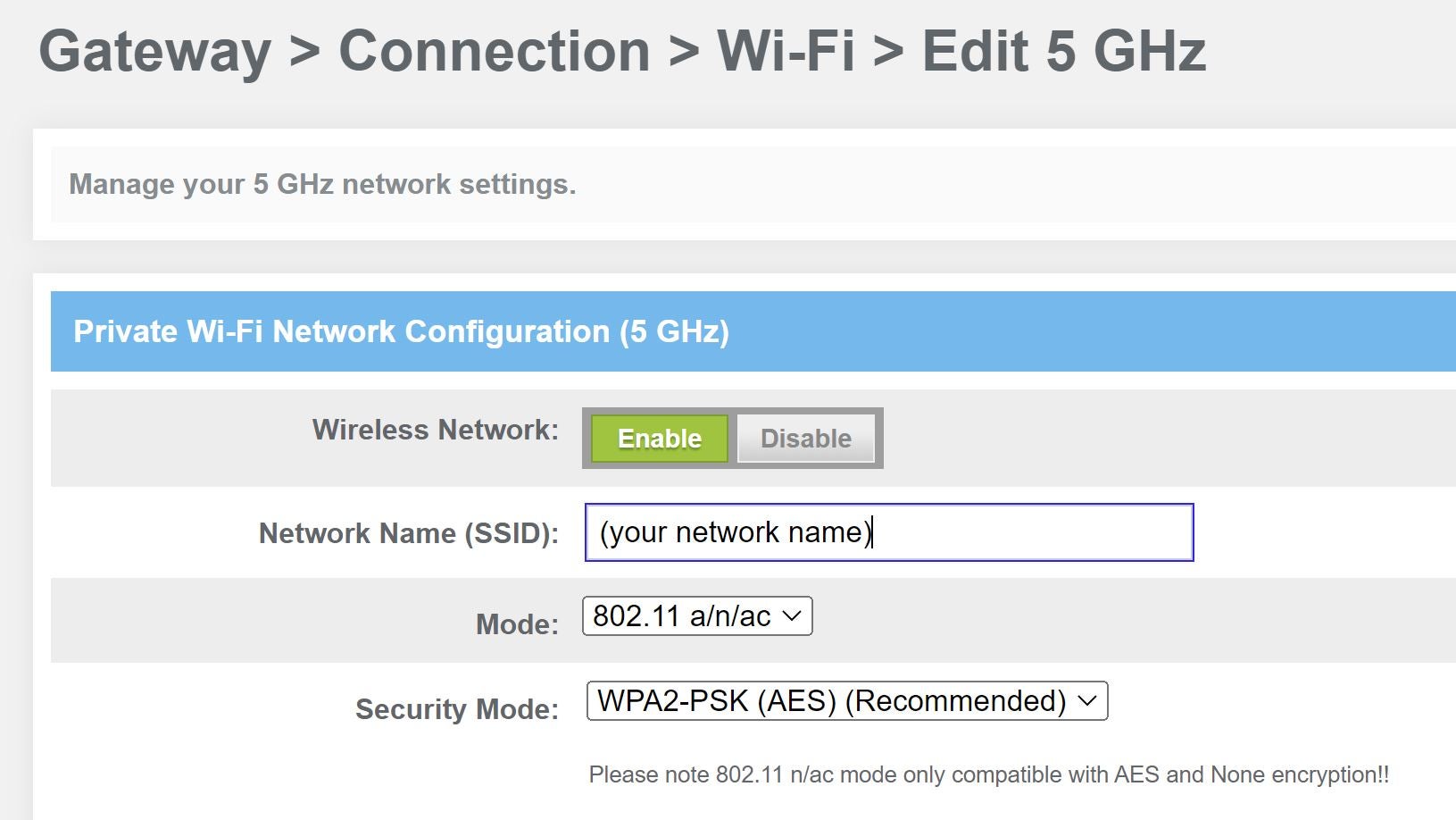
Encryption prevents outsiders from reading data transmitted over the network. Modern routers support WPA3, which is currently the most secure consumer-level encryption protocol.
The Wi-Fi Alliance confirms that WPA3 offers stronger protection against brute-force attacks compared to older protocols.
To configure encryption:
- Open the wireless security section in router settings
- Select WPA3-Personal if available
- If not supported, choose WPA2-PSK (AES)
- Avoid WEP or WPA, which are outdated and vulnerable
Encryption acts as a protective shield around network traffic.
Step 3: Create a Strong, Unique WiFi Password
A strong encryption protocol is only effective if paired with a strong password. Weak passwords remain one of the primary reasons networks get compromised.
The National Cyber Security Centre recommends using three random words combined with numbers and symbols for improved memorability and security.
Example structure:
BlueRiver!Stone94Sky
Avoid:
- Sequential numbers (12345678)
- Common words like “password”
- Router brand names
- Birthdates or addresses
Passwords should be unique and not reused across other accounts. Periodic updates every 6–12 months add additional security.
Step 4: Update Router Firmware Regularly
Routers run firmware, which functions as their internal operating system. Like any software, it may contain vulnerabilities that manufacturers patch over time.
The United States Computer Emergency Readiness Team emphasizes that outdated firmware is a common entry point for attackers.
To maintain protection:
- Enable automatic firmware updates if supported
- Check for updates manually every few months
- Replace routers that no longer receive security patches
A router that no longer receives updates should be considered obsolete from a security perspective.
Step 5: Disable WPS and Unnecessary Remote Access
WiFi Protected Setup (WPS) simplifies device connection but has documented vulnerabilities. Security researchers have demonstrated that WPS PIN systems can sometimes be exploited.
Experts from Kaspersky note that disabling unnecessary connection shortcuts reduces attack surfaces.
Security improvements include:
- Turning off WPS in router settings
- Disabling remote management unless essential
- Ensuring HTTPS is used if remote access must remain enabled
Limiting entry points makes unauthorized access far more difficult.
Step 6: Rename Your Network (SSID)
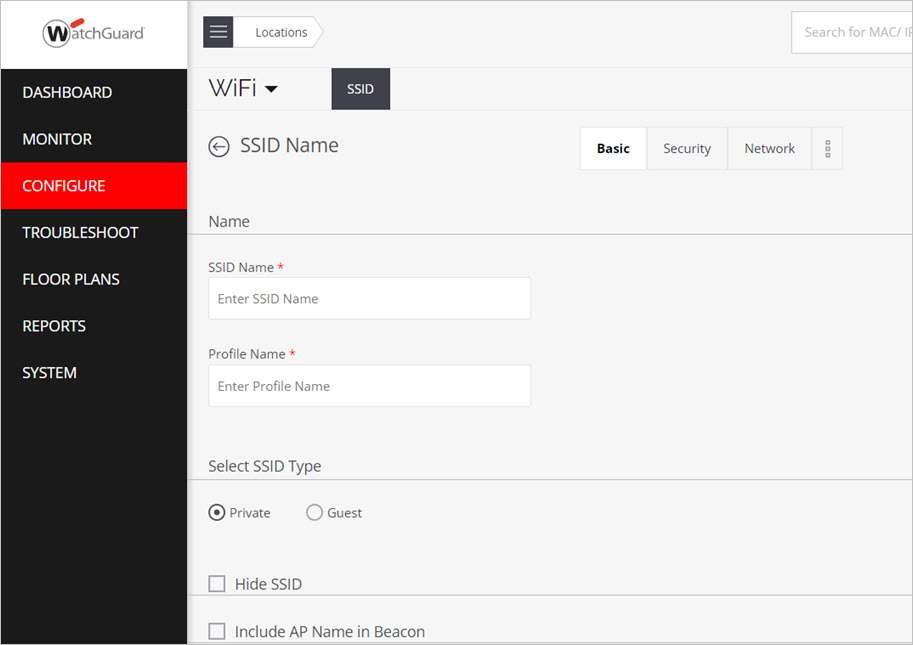
The default network name (SSID) often reveals the router brand or model. Attackers can use that information to identify potential vulnerabilities.
To improve security:
- Change the SSID to something neutral
- Avoid personal names or apartment numbers
- Do not include identifiable information
While renaming alone does not secure the network, it removes helpful clues for attackers.
Step 7: Enable Network Firewall and Disable UPnP
Most modern routers include a built-in firewall. Ensure it is enabled. A firewall filters incoming and outgoing traffic based on security rules.
Universal Plug and Play (UPnP) allows devices to open ports automatically, which can be convenient but risky.
Best practices:
- Confirm firewall is active
- Disable UPnP unless required
- Close unused ports
These adjustments strengthen perimeter protection.
Step 8: Set Up a Guest Network
Providing visitors with access to the main network exposes primary devices to potential risk.
A guest network:
- Is isolated from main devices
- Has a separate password
- Can restrict bandwidth usage
Use a strong password for the guest network as well. Disable it when not in use.
Step 9: Monitor Connected Devices Regularly
Router dashboards display connected devices. Regular review helps identify unfamiliar connections.
If an unknown device appears:
- Change the WiFi password immediately
- Reboot the router
- Remove unauthorized devices
- Consider enabling MAC address filtering
Routine monitoring strengthens awareness and response capability.
Step 10: Use Additional Security Layers
Advanced protection methods include:
- DNS filtering for blocking malicious websites
- Router-level antivirus features (if supported)
- Two-factor authentication for router login
- Network segmentation for IoT devices
Separating smart devices from work computers limits potential damage if one device becomes compromised.
Home WiFi Security Comparison Table
Essential vs Advanced Security Measures
| Security Feature | Difficulty Level | Security Impact | Recommended For |
|---|---|---|---|
| Change Admin Password | Easy | Very High | All users |
| Enable WPA3/WPA2-AES | Easy | Very High | All users |
| Strong WiFi Password | Easy | High | All users |
| Firmware Updates | Easy | High | All users |
| Disable WPS | Easy | Medium-High | All users |
| Guest Network | Moderate | High | Homes with visitors |
| Firewall Settings | Moderate | High | Remote workers |
| Network Segmentation | Advanced | Very High | Smart homes |
This structured approach ensures balanced protection without unnecessary complexity.
Common Mistakes to Avoid
Even well-intentioned users make avoidable errors:
- Using the same password for router and WiFi
- Ignoring firmware updates
- Leaving remote access enabled
- Sharing the primary WiFi password publicly
- Keeping outdated hardware
Avoiding these mistakes significantly improves security posture.
Frequently Asked Questions
How often should a WiFi password be changed?
Changing it every 6–12 months is reasonable. Immediate changes are necessary if suspicious activity appears.
Is hiding the SSID enough to secure the network?
No. Hidden networks can still be discovered with basic scanning tools. Encryption and strong passwords are far more important.
Does upgrading the router improve security?
Yes. Newer routers support stronger encryption standards like WPA3 and receive security updates longer.
Is MAC address filtering effective?
It adds a minor barrier but can be bypassed. It should complement, not replace, encryption and strong passwords.
Should smart home devices be on a separate network?
Yes. Isolating IoT devices reduces risk if one becomes compromised.
What if the router does not support WPA3?
Use WPA2-PSK (AES) and consider upgrading to a modern router that supports WPA3 for stronger protection.
Final Thoughts: Building a Secure Digital Foundation
Securing a home WiFi network does not require technical expertise—only consistent, informed action. By changing default credentials, enabling modern encryption, using strong passwords, updating firmware, disabling unnecessary features, and monitoring connected devices, households can dramatically reduce cybersecurity risks.
A home network is the gateway to banking, work, education, and personal communication. Treating it with the same seriousness as a physical home lock is essential. Small configuration changes can prevent significant long-term consequences.
Implement the steps outlined above methodically. Review settings periodically. Upgrade hardware when necessary. Digital security is not a one-time task but an ongoing responsibility. With proper safeguards in place, a home WiFi network can remain both convenient and secure in an increasingly connected world.
