

Data loss on Windows 10 can happen suddenly and without warning. A mistaken Shift+Delete command, a formatted USB drive, a corrupted hard disk partition, or even a Windows update glitch can make important files appear permanently gone. Yet in many situations, deleted data is not immediately destroyed—it remains on the storage device until overwritten. This is where free data recovery software for Windows 10 becomes essential.
This comprehensive guide explores how data recovery works, when free tools are effective, which software options are most reliable, and how to recover lost files safely without causing further damage. The goal is to provide a practical, technically accurate resource that helps users make informed decisions while protecting their data.
Understanding How Data Recovery Works on Windows 10
When a file is deleted in Windows 10, it typically goes to the Recycle Bin. If the Recycle Bin is emptied or the file is permanently deleted, Windows does not immediately erase the file’s actual data from the disk. Instead, the system removes the file reference from the file system and marks that storage space as available for reuse.
As long as new data does not overwrite that space, recovery software can scan the drive, locate remnants of deleted files, and reconstruct them. This applies to:
- Internal hard disk drives (HDDs)
- Solid-state drives (SSDs), with limitations due to TRIM
- USB flash drives
- Memory cards
- External hard drives
However, recovery success depends on several factors:
- Whether TRIM is enabled on SSDs
- How long ago the data was deleted
- Whether new files were written to the drive
- File system type (NTFS, FAT32, exFAT)
- Physical health of the drive
Immediate action increases the chances of successful recovery.
When Free Data Recovery Software Is Enough
Free data recovery software is often sufficient in scenarios such as:
- Accidental file deletion
- Recycle Bin emptied by mistake
- Formatted USB drive
- Lost partition that still exists physically
- System crash leading to inaccessible files
Free versions usually include limitations such as recovery size caps (for example, 500MB to 2GB), limited preview features, or restricted advanced repair functions. For personal use and small-scale recovery, free tools are often more than adequate.
For severe hardware damage or clicking hard drives, software recovery is not recommended; professional recovery services may be necessary.
Top Free Data Recovery Software for Windows 10
Below are some of the most trusted and widely used free data recovery programs compatible with Windows 10. Each tool has strengths, limitations, and ideal use cases.
Recuva
Recuva, developed by Piriform, is one of the most well-known free recovery tools for Windows. It offers a simple wizard-based interface, making it accessible even to non-technical users.
Key features include:
- Quick scan and deep scan modes
- Recovery from HDDs, SSDs, USB drives, and memory cards
- Secure file deletion option
- Portable version available
Recuva works best for recently deleted files where minimal overwriting has occurred. It displays file condition status (Excellent, Poor, Unrecoverable), which helps users decide whether recovery is worth attempting.
Limitations include fewer advanced repair features and limited performance with heavily fragmented files.
Best for: Simple accidental deletions and basic recovery needs.
EaseUS Data Recovery Wizard Free
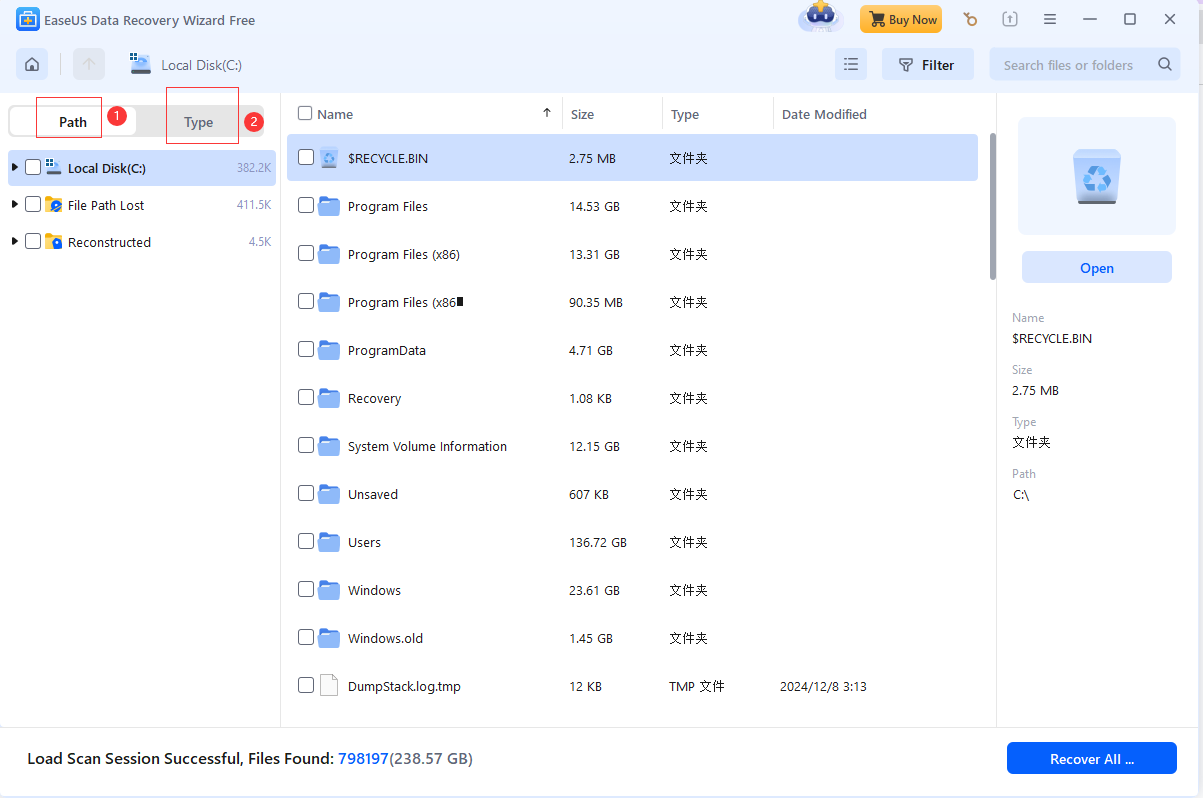
EaseUS offers a free version that allows recovery of up to 2GB of data under certain conditions. It is known for its modern interface and powerful scanning engine.
Notable features:
- Recovers deleted, formatted, or lost partition files
- Supports over 1000 file types
- Deep scanning algorithm for fragmented files
- Preview before recovery
EaseUS performs well in scenarios involving formatted drives or partition loss. The scanning process may take longer, but it often finds more recoverable data than simpler tools.
Limitations: Recovery size limit in the free version.
Best for: Moderate data loss situations requiring deeper scanning.
Disk Drill Free

Disk Drill provides a clean and intuitive interface along with up to 500MB of free recovery on Windows.
Key features:
- Deep scan and quick scan
- Partition recovery support
- File preview functionality
- Recovery Vault protection feature
Disk Drill stands out for its additional protection features, which can help prevent future data loss. It supports a wide range of file systems including NTFS, FAT32, exFAT, and even some Linux file systems.
Limitations: Lower free recovery limit compared to some competitors.
Best for: Users who want both recovery and preventive tools.
Windows File Recovery (Microsoft Tool)
Windows File Recovery is a command-line tool released by Microsoft specifically for Windows 10 and later versions.
Features:
- Official Microsoft utility
- Supports NTFS, FAT, exFAT, and ReFS
- Signature and segment recovery modes
- Works through Command Prompt
Although powerful, this tool requires familiarity with command-line syntax. It does not have a graphical interface, which may be challenging for beginners.
Best for: Advanced users comfortable with command-line operations.
Comparison Table: Best Free Data Recovery Software for Windows 10
Quick Comparison of Features and Limits
| Software | Free Recovery Limit | Interface Type | Deep Scan | Partition Recovery | Best For |
|---|---|---|---|---|---|
| Recuva | Unlimited (basic) | Graphical | Yes | Limited | Simple deletions |
| EaseUS Data Recovery Free | Up to 2GB | Graphical | Yes | Yes | Formatted drives & partitions |
| Disk Drill Free | 500MB | Graphical | Yes | Yes | Extra protection features |
| Windows File Recovery | No set limit | Command-line | Yes | Yes | Advanced manual recovery |
This table highlights that the best choice depends on the situation rather than brand recognition alone.
Step-by-Step: How to Recover Deleted Files Safely
To maximize success and prevent further data damage, follow these structured steps:
- Stop using the affected drive immediately. Writing new data may overwrite recoverable files.
- Download recovery software on a different drive or external USB.
- Install the tool on a separate partition if possible.
- Run a quick scan first.
- If results are incomplete, run a deep scan.
- Preview files before recovery.
- Save recovered files to a different drive—not the original location.
Saving recovered files to the same drive risks overwriting other recoverable data.
HDD vs SSD: Important Recovery Differences
Hard Disk Drives (HDDs) store data magnetically, and deleted files often remain intact until overwritten. This makes recovery more predictable and successful.
Solid-State Drives (SSDs) use TRIM technology, which may automatically erase deleted data blocks to improve performance. When TRIM is active, recovery chances drop significantly after deletion.
Users unsure whether TRIM is enabled can check using Windows command-line utilities. If recovering from an SSD, immediate action is critical.
Common Causes of Data Loss on Windows 10
Understanding the cause of data loss can guide the choice of recovery method.
Frequent causes include:
- Accidental deletion
- Recycle Bin emptied
- Drive formatting
- Malware or ransomware infection
- File system corruption
- Sudden power loss
- Windows update errors
- Partition table damage
Software recovery works best for logical errors rather than physical drive damage.
Signs That Software Recovery May Not Work
In some situations, free data recovery software is unlikely to succeed:
- Clicking or grinding sounds from the drive
- Drive not detected in BIOS
- Severe physical damage
- Burnt electronics
- Repeated read/write failure errors
These symptoms suggest hardware-level failure requiring professional lab recovery.
File Types That Can Be Recovered
Most free data recovery tools support:
- Documents (DOCX, PDF, XLSX, PPT)
- Photos (JPG, PNG, RAW formats)
- Videos (MP4, AVI, MOV)
- Audio files (MP3, WAV)
- Archives (ZIP, RAR)
- Email files
- System files
Recovery quality depends on file fragmentation and overwrite status.
Preventing Future Data Loss
Data recovery should not replace good backup practices. Effective prevention strategies include:
- Enabling File History in Windows 10
- Using external hard drive backups
- Cloud backup services
- Creating system restore points
- Avoiding forced shutdowns
- Regular antivirus scans
A 3-2-1 backup strategy—three copies of data, two different media types, one offsite copy—remains a widely recommended approach.
Frequently Asked Questions (FAQ)
Can permanently deleted files really be recovered?
Yes, in many cases. When files are deleted, they are marked as free space until overwritten. Recovery success depends on how quickly action is taken and whether new data has replaced the old data.
Is free data recovery software safe?
Reputable tools from established developers are generally safe. Downloading software from official sources reduces the risk of bundled malware. Always scan installations with antivirus software.
How long does a deep scan take?
Deep scans can take anywhere from 30 minutes to several hours depending on drive size, speed, and health. Larger drives with heavy fragmentation take longer.
Can data be recovered after formatting?
Yes, especially if a quick format was performed. Quick formatting does not fully erase data; it rebuilds the file system structure. Full formatting significantly reduces recovery chances.
Does recovery software work after Windows 10 reset?
If the reset did not overwrite all data sectors, recovery may still be possible. However, the success rate decreases significantly after major system operations.
Is SSD recovery possible?
It is possible but less predictable due to TRIM technology. If TRIM has cleared deleted sectors, recovery becomes unlikely.
Should recovery be attempted multiple times?
Running multiple scans is fine, but saving recovered files back to the same drive can reduce future recovery success.
What is the difference between quick scan and deep scan?
Quick scan searches file tables for recently deleted entries. Deep scan searches raw data sectors and is slower but more thorough.
Choosing the Right Free Tool for Your Situation
Selecting the right software depends on:
- Type of storage device
- Amount of lost data
- Whether formatting occurred
- User’s technical comfort level
- Time available for scanning
For quick accidental deletions, Recuva may be sufficient. For formatted drives or complex recovery, EaseUS or Disk Drill may offer better results. For advanced manual control, Windows File Recovery provides powerful command-line functionality.
Final Thoughts on Free Data Recovery Software for Windows 10
Free data recovery software for Windows 10 can be remarkably effective when used correctly and promptly. Many data loss situations are not permanent disasters but logical errors that can be reversed with the right tools and careful handling.
The key principles are simple but critical: stop using the affected drive immediately, install recovery software on a separate device, perform thorough scans, and save recovered files elsewhere. Understanding the differences between HDD and SSD recovery, recognizing hardware failure symptoms, and maintaining regular backups significantly improve long-term data protection.
While free tools have limitations, they provide substantial value for personal users and small-scale recovery tasks. With realistic expectations, methodical steps, and proper preventive strategies, users can recover lost files and minimize future risks effectively.
Data loss may be stressful, but informed action and the right free recovery software can often turn a critical situation into a manageable technical challenge.

