

Accidentally deleting an important file can feel catastrophic. A project document disappears. A folder full of photos vanishes. A USB drive shows empty. In many cases, the first instinct is to search for third-party recovery software. However, before installing anything, it is important to understand that operating systems already provide built-in recovery options. In fact, acting quickly and methodically often increases the chances of successful recovery.
This guide explains how deleted files can be recovered without installing external software, covering Windows, macOS, USB drives, and cloud storage. It also explores the technical foundations of file deletion, system tools, backup strategies, and limitations. Every section is grounded in reliable technical documentation and operating system support guidelines.
Understanding What Happens When a File Is Deleted

When a file is deleted, it is usually not immediately erased from the storage device. Instead, the operating system removes the reference to the file in the file system index and marks the storage space as “available.” The underlying data remains until it is overwritten by new data.
According to documentation from Microsoft and Apple, deleting a file typically performs the following steps:
- The file is moved to a temporary holding area (Recycle Bin or Trash).
- If permanently deleted, the system removes its directory entry.
- The data blocks remain intact until overwritten.
On traditional hard disk drives (HDDs), this makes recovery more feasible. On solid-state drives (SSDs), features like TRIM may erase data faster, reducing recovery chances. The technical differences between HDD and SSD storage behavior are widely explained in storage documentation from Western Digital.
Understanding this mechanism is essential because it explains why immediate action matters. The more the system is used after deletion, the greater the risk of overwriting the recoverable data.
Step 1: Check the Recycle Bin (Windows) or Trash (Mac)

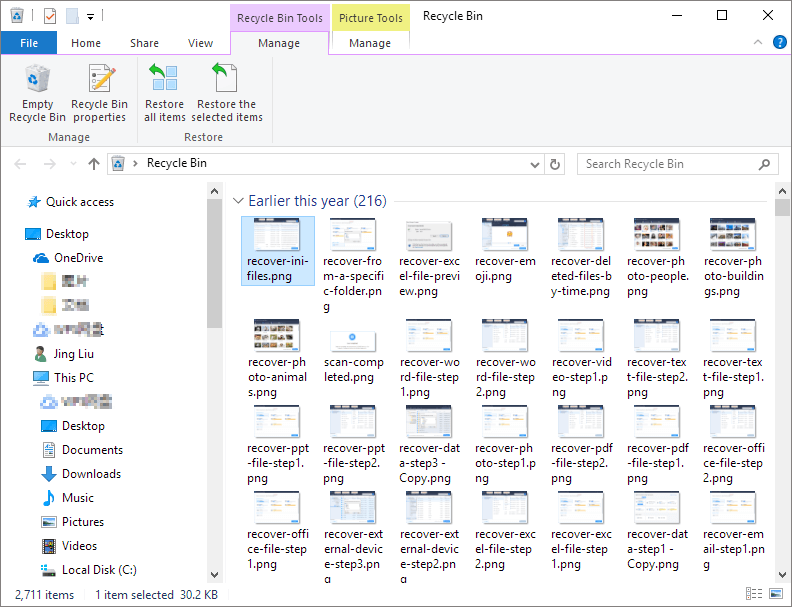
The simplest recovery method is also the most overlooked: checking the system’s temporary deletion folder.
On Windows
Files deleted normally (without Shift + Delete) are moved to the Recycle Bin. To restore:
- Open Recycle Bin.
- Locate the file.
- Right-click and select Restore.
Official recovery steps are documented by Microsoft Support.
On macOS
Deleted files move to the Trash:
- Open Trash.
- Select the file.
- Click “Put Back.”
Instructions are outlined in guides from Apple Support.
This method works only if the bin or trash has not been emptied. If it has been cleared, proceed to system-level recovery options.
Step 2: Use Previous Versions (Windows File History)
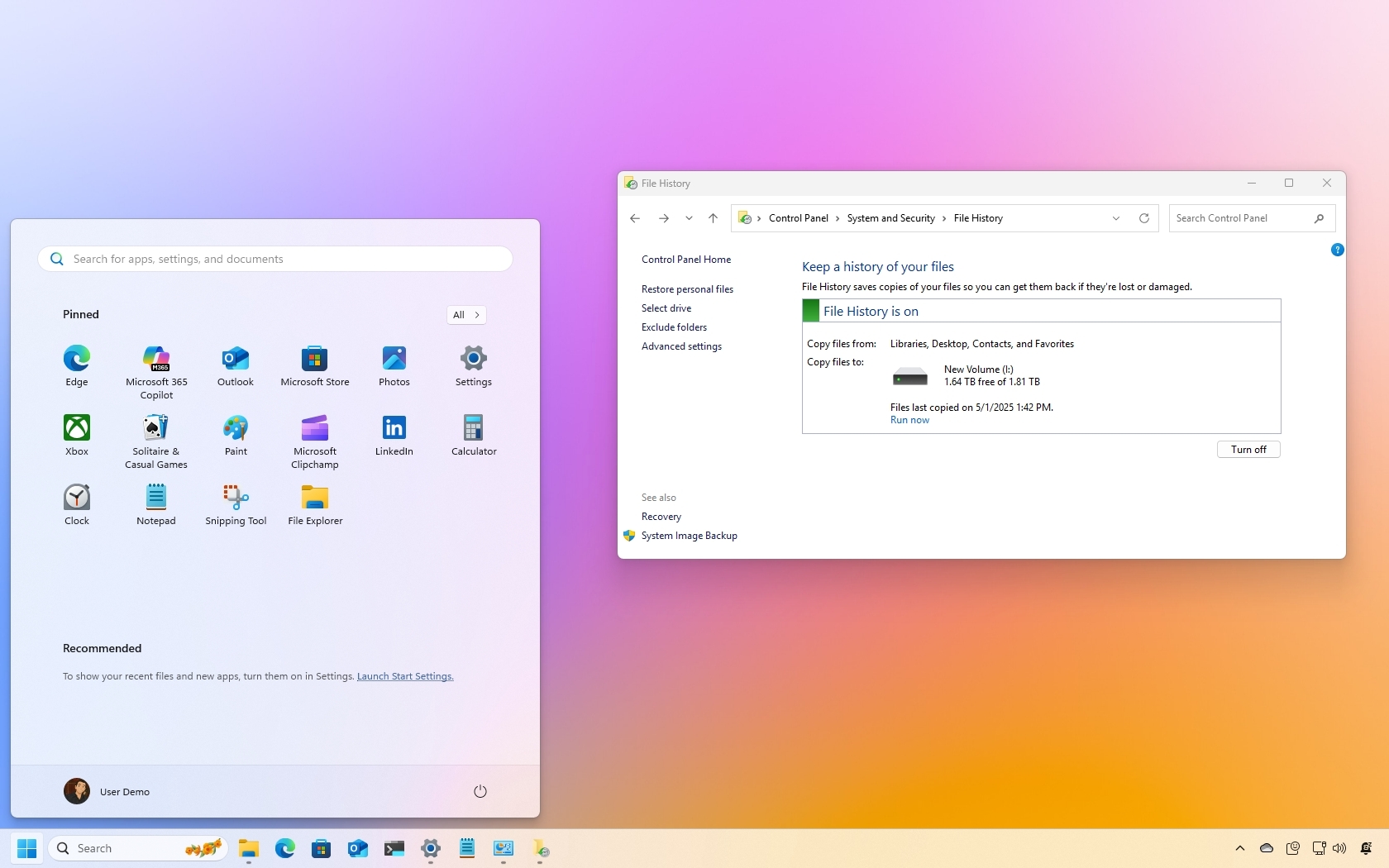
Windows includes a built-in backup feature called File History. If enabled before deletion, it allows recovery of previous file versions without external software.
How to Restore:
- Navigate to the folder where the file was stored.
- Right-click the folder.
- Select “Restore previous versions.”
- Choose a version and restore.
This functionality is part of Windows’ built-in backup ecosystem described by Microsoft in its Windows documentation.
If File History was active, recovery is straightforward and reliable. If it was never enabled, this method will not display available versions.
Step 3: Use Time Machine (macOS)

macOS includes Time Machine, a powerful built-in backup solution. When enabled, it creates hourly, daily, and weekly snapshots of files.
Recovery Steps:
- Connect the Time Machine backup drive.
- Open the folder where the file existed.
- Enter Time Machine from the menu bar.
- Scroll back through snapshots.
- Select and restore.
Time Machine recovery processes are detailed by Apple in official macOS guides.
Time Machine is often the most reliable non-software recovery method because it maintains multiple restore points.
Step 4: Restore From Cloud Backups
Many users forget that cloud synchronization services may store deleted versions independently.
Popular services include:
- Google Drive
- Microsoft OneDrive
- Dropbox
These platforms typically provide:
- Trash or Bin folders
- Version history
- Restore windows (often 30 days or more)
For example, cloud data retention policies are outlined in documentation from Google and Microsoft.
To recover:
- Log into the web interface.
- Open the Trash/Bin section.
- Restore the file.
- Check version history if overwritten.
Cloud recovery works even if the local device copy was deleted.
Step 5: Restore from Windows Backup and Restore
Windows also offers Backup and Restore (Windows 7), still present in later versions.
Steps:
- Open Control Panel.
- Navigate to Backup and Restore.
- Select “Restore my files.”
Detailed documentation is available through Microsoft Support.
If backups were configured, recovery can retrieve entire folders or system images without third-party tools.
Step 6: Recover Using Command Prompt (For External Drives)
If files on a USB drive disappear due to file system errors (not true deletion), they may be hidden rather than erased.
The built-in CHKDSK command can repair logical file system corruption.
Steps:
- Connect the USB drive.
- Open Command Prompt as administrator.
- Run:
chkdsk X: /f(Replace X with drive letter)
Microsoft documents CHKDSK usage in its Windows command reference.
This method is useful when:
- Files disappear after improper removal
- Virus infection hides files
- File system corruption occurs
It does not recover overwritten data but can restore directory structures.
Quick Comparison: Built-In File Recovery Methods
Practical Recovery Options Without Software
| Method | Works After Bin Emptied? | Requires Backup Enabled? | Best For | Success Rate |
|---|---|---|---|---|
| Recycle Bin / Trash | No | No | Recent deletions | High |
| File History | Yes | Yes | Windows documents | High |
| Time Machine | Yes | Yes | macOS backups | Very High |
| Cloud Storage | Yes | Yes | Synced files | High |
| CHKDSK | Sometimes | No | Corrupted USB | Moderate |
| System Backup Restore | Yes | Yes | Full system recovery | Very High |
Success depends on how quickly recovery begins and whether backups exist.
When Recovery Without Software Is Not Possible
Certain scenarios reduce recovery chances significantly:
- SSD TRIM has permanently cleared blocks.
- Data has been overwritten by new installations.
- The drive was reformatted with secure erase.
- No backups were configured.
Organizations like National Institute of Standards and Technology explain how secure deletion methods make recovery practically impossible.
In such cases, professional data recovery services may be required, but even they cannot guarantee restoration if data blocks are fully overwritten.
Preventing Future Data Loss
Prevention is more effective than recovery. System documentation from Apple and Microsoft consistently recommend automated backups.
Best practices include:
- Enable File History (Windows).
- Activate Time Machine (macOS).
- Sync important folders with cloud storage.
- Use external drives for periodic full backups.
- Avoid excessive disk activity after accidental deletion.
Creating a layered backup strategy (local + cloud + external drive) dramatically reduces risk.
Frequently Asked Questions
Can deleted files be recovered without software?
Yes, if they are still in Recycle Bin, Trash, backup systems, or cloud storage. Once overwritten, recovery becomes unlikely without professional tools.
How long do deleted files stay recoverable?
Until the storage blocks are overwritten. On SSDs with TRIM enabled, deletion may occur quickly. On HDDs, recovery windows can be longer.
Does formatting delete everything permanently?
Quick formatting removes file system references but may leave data intact temporarily. Full formatting and secure erase procedures are much more destructive.
Can files deleted using Shift + Delete be recovered?
They bypass Recycle Bin, but may still exist on disk until overwritten. Built-in backups are the safest recovery method.
Is recovery possible after emptying the Recycle Bin?
Yes, if File History, system backups, or cloud backups were active.
Final Thoughts: Acting Fast and Thinking Strategically
File deletion does not always mean permanent loss. Operating systems are designed with recovery layers, including temporary holding bins, backup utilities, version histories, and cloud redundancy. The key factors are timing and preparation.
Immediate action reduces overwrite risk. Built-in tools such as Recycle Bin, File History, Time Machine, and cloud recovery dashboards often provide complete restoration without external software. However, once storage blocks are overwritten or secure erase procedures are applied, recovery becomes highly improbable.
The most reliable strategy is proactive configuration. Enable automatic backups. Use cloud synchronization. Maintain external drive copies. A multi-layer backup approach ensures that accidental deletions become minor inconveniences rather than catastrophic events.
Understanding how file systems handle deletion empowers users to respond calmly and methodically. With the right approach, many deleted files can be recovered safely, legally, and effectively—without installing any additional software.

