
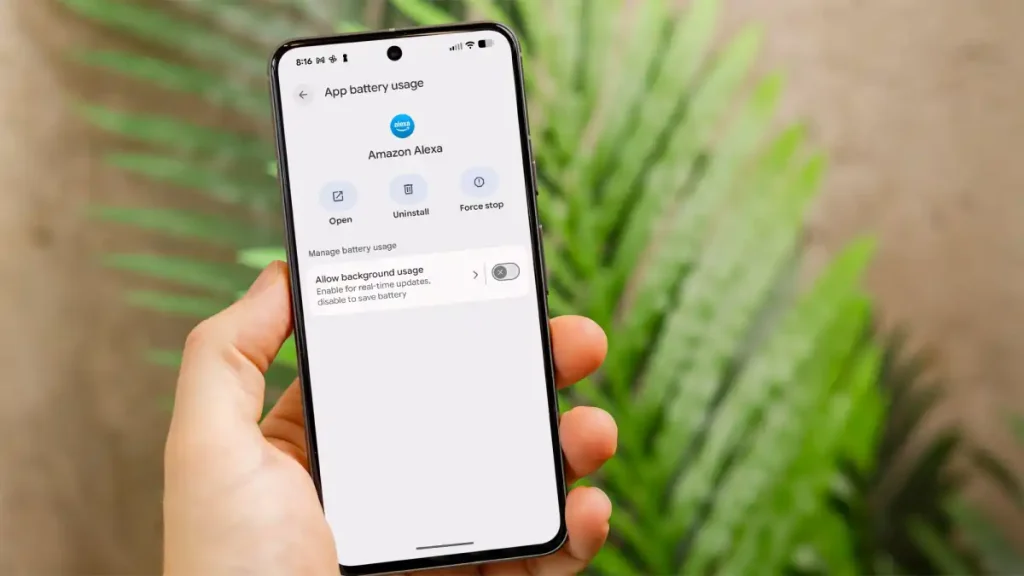
A slow Android phone can feel frustrating, especially when simple tasks like opening apps, scrolling social media, or switching between screens start taking longer than they should. Many people assume that a factory reset is the only solution. In reality, there are several proven methods to improve performance without wiping your data.
Modern Android devices are powerful, but over time they accumulate cached files, background processes, outdated apps, and storage clutter. According to official Android documentation from Google, performance often depends on storage availability, app optimization, and system updates. Addressing these factors systematically can significantly improve responsiveness.
This comprehensive guide explains practical, research-backed methods to speed up an Android phone without performing a reset. Each section provides detailed, actionable steps and explains why they work.
Why Android Phones Slow Down Over Time
Before applying fixes, it helps to understand the root causes.
Android devices rely on internal storage, RAM management, and background services to function smoothly. As storage fills up, read and write speeds decline. Apps accumulate cached data. Background services continue running even when unused. Software updates may introduce heavier features that older hardware struggles to handle.
Common causes include:
- Nearly full internal storage
- Too many background apps
- Excessive app cache
- Heavy launchers or widgets
- Outdated system software
- Malware or poorly optimized apps
- Battery optimization restrictions causing lag
Addressing these systematically produces noticeable improvements.
Clear App Cache and Temporary Files
Every app stores temporary files to load content faster. Over time, this cache grows large and can consume gigabytes of space, slowing down the system.
Clearing cache does not delete personal data. It removes temporary files that apps can rebuild when needed.
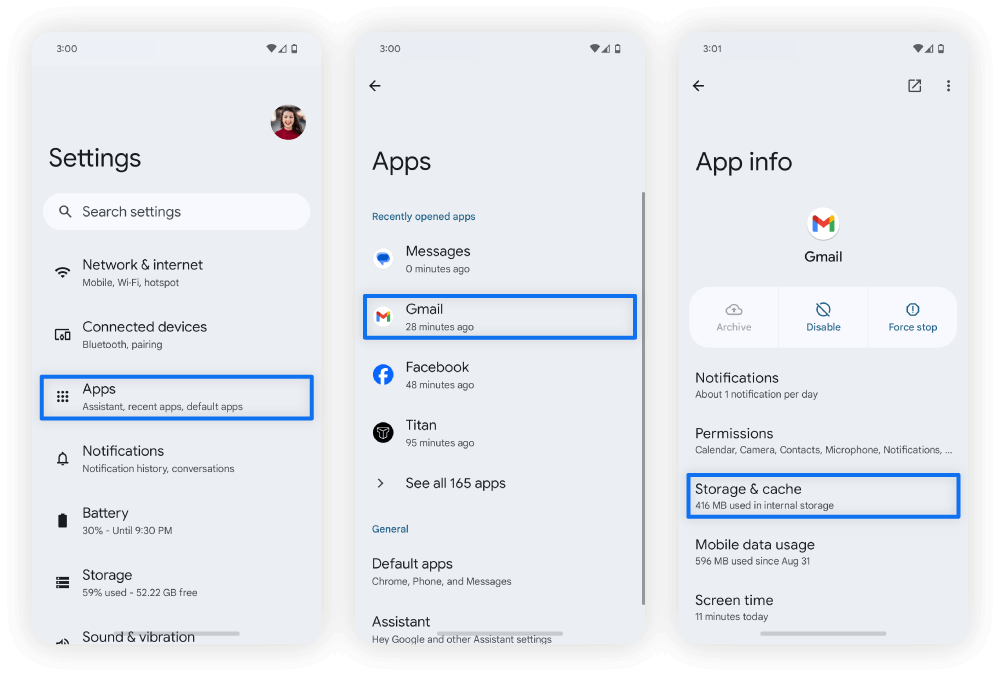
Steps to clear app cache:
- Open Settings
- Tap Apps
- Select a frequently used app
- Tap Storage & Cache
- Choose Clear Cache
Repeat this for large apps such as browsers, social media platforms, and streaming services.
For deeper cleaning:
- Go to Settings > Storage
- Use the built-in storage cleaner
- Remove large unused files
Why this works: When storage is cluttered, Android struggles with memory allocation and indexing. Freeing space improves read/write speeds and overall responsiveness.
Important note: Avoid tapping “Clear Storage” unless necessary, as that removes login data and preferences.
Free Up Internal Storage Space
Performance drops significantly when internal storage exceeds 80–85% usage. Android systems rely on free space for smooth memory management.
To optimize storage:
- Delete unused apps
- Remove duplicate photos and videos
- Transfer media to cloud storage
- Use built-in file managers to locate large files
- Empty downloads folder regularly
Focus especially on:
- Old WhatsApp or Telegram media
- Offline videos from streaming apps
- Large games no longer used
Why it matters: Solid-state storage slows when nearly full because the system has fewer free blocks available for temporary processes. Keeping at least 20–25% storage free improves speed noticeably.
Reduce Background Apps and Services

Many apps continue running in the background even when not actively used. They consume RAM and CPU cycles.
To reduce background load:
- Open Settings
- Go to Battery
- Tap Battery Usage
- Identify high background usage apps
- Restrict background activity
You can also disable auto-start permissions for unnecessary apps.
Additionally:
- Close unused apps from the recent apps menu
- Disable background data for rarely used apps
- Remove unnecessary widgets from the home screen
Why this works: RAM is limited. When too many apps run simultaneously, the system constantly swaps processes, causing lag.
Disable or Reduce Animations

Android uses animations to make transitions visually smooth. However, these effects consume processing power.
Reducing animations makes the device feel faster instantly.
Steps:
- Go to Settings > About Phone
- Tap Build Number seven times to enable Developer Options
- Return to Settings
- Open Developer Options
- Find:
- Window Animation Scale
- Transition Animation Scale
- Animator Duration Scale
- Set each to 0.5x or turn off completely
This does not increase hardware performance but reduces visual delay.
Update System Software and Apps
Software updates often include performance optimizations and security patches.
To check for updates:
- Settings > System > Software Update
- Update all apps via Play Store
Outdated apps may be poorly optimized and conflict with the current Android version.
Why updates matter:
- Bug fixes improve memory management
- Security updates remove performance-draining malware
- Optimization patches enhance stability
However, if the device is very old, major system upgrades may slow it down. In such cases, keeping essential apps updated while avoiding heavy new features is wiser.
Uninstall or Disable Bloatware
Many Android phones come preloaded with apps that cannot easily be removed. These apps consume storage and sometimes run background services.
To disable pre-installed apps:
- Settings > Apps
- Select the app
- Tap Disable
Disabling prevents it from running and removes updates.
Be cautious not to disable essential system apps.
Reducing bloatware frees RAM and reduces system load.
Use Lite Versions of Apps
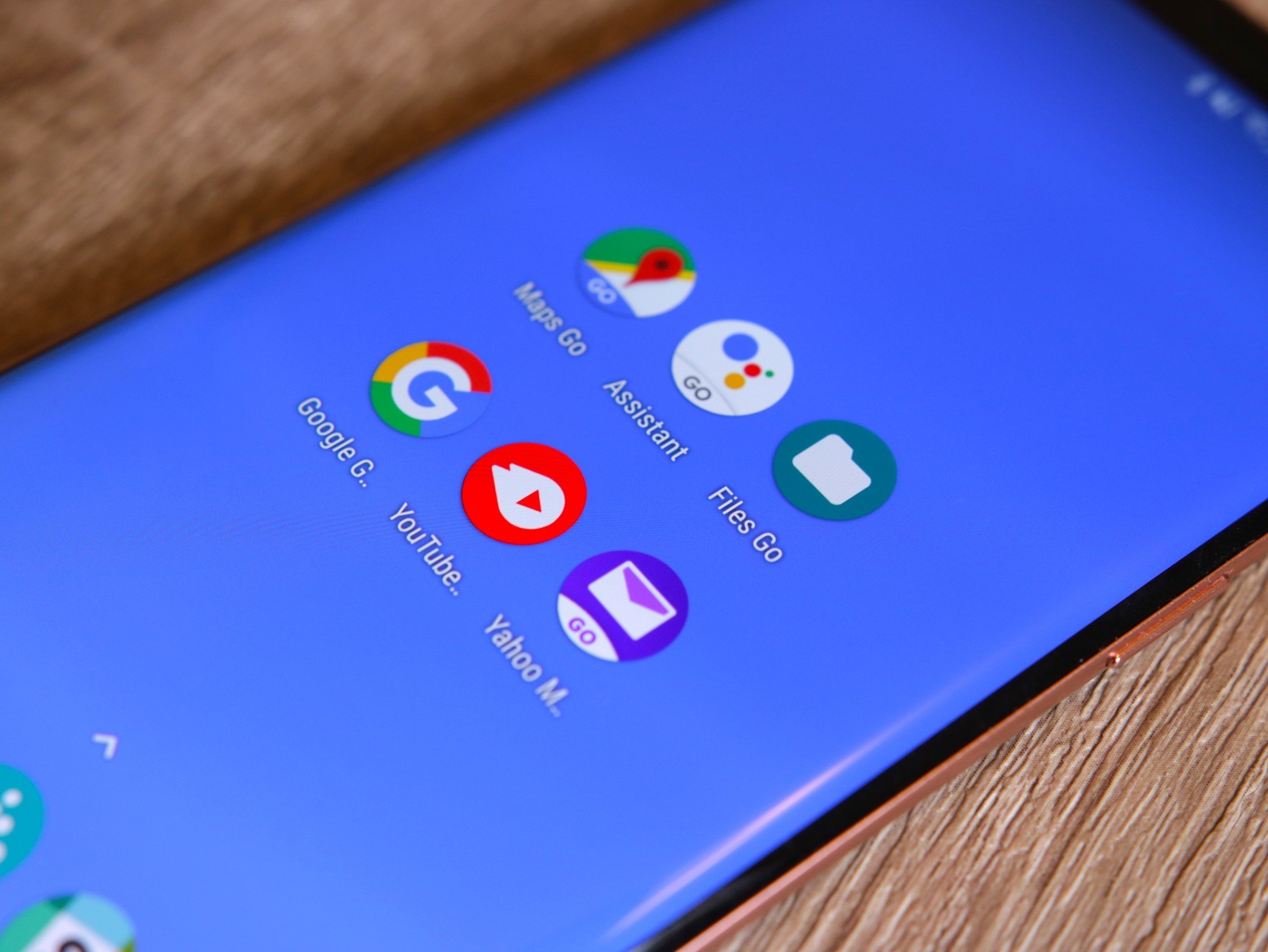
Heavy apps consume significant memory and processing power. Lite versions are optimized for lower-end devices.
Examples include:
- Facebook Lite
- Google Go
- Messenger Lite
Benefits:
- Smaller app size
- Reduced background processes
- Lower RAM consumption
- Faster load times
Switching to lite apps can make a noticeable difference on devices with 2GB–4GB RAM.
Restart the Device Regularly
A simple restart clears temporary memory, stops background processes, and refreshes system services.
Benefits include:
- Clearing RAM
- Resetting network connections
- Fixing temporary glitches
Restarting once every few days can maintain smoother performance.
Manage Widgets and Live Wallpapers
Widgets continuously update data in the background. Live wallpapers also consume GPU resources.
To improve speed:
- Remove unnecessary widgets
- Use static wallpaper instead of live wallpaper
- Avoid animated lock screens
Reducing these visual extras decreases CPU and battery load.
Optimize Battery Settings
Battery optimization can indirectly affect performance. When the battery health declines, some devices throttle performance to protect hardware.
Steps:
- Disable battery saver when performance is needed
- Check battery health in device diagnostics
- Replace battery if significantly degraded
Old batteries may cause lag, overheating, and throttling.
Scan for Malware and Harmful Apps
Malicious apps can slow devices dramatically.
Signs include:
- Excessive ads
- High background data usage
- Rapid battery drain
Use built-in security features or trusted antivirus tools from reputable developers. Remove suspicious apps immediately.
Keep Home Screen Clean and Minimal
Heavy launchers and animated themes slow older phones.
Recommendations:
- Use default launcher
- Limit app folders
- Reduce number of home screens
- Avoid excessive icon packs
A minimal interface improves system responsiveness.
Advanced Tweaks for Experienced Users
These steps require caution but can improve performance:
- Reduce background process limit in Developer Options
- Disable auto-sync for non-essential accounts
- Clear system cache partition (if available)
These tweaks should only be applied carefully.
Performance Impact Comparison Table
Performance Improvement Methods Compared
| Method | Difficulty Level | Performance Boost | Data Risk | Recommended For |
|---|---|---|---|---|
| Clear App Cache | Easy | Moderate | None | All users |
| Free Storage Space | Easy | High | None | Nearly full devices |
| Disable Animations | Moderate | Instant Visual Boost | None | Older phones |
| Uninstall Bloatware | Moderate | Moderate | Low | Preloaded apps |
| Use Lite Apps | Easy | High | None | Low RAM devices |
| Restart Device | Easy | Temporary Boost | None | All users |
| Restrict Background Apps | Moderate | High | None | Heavy multitaskers |
| Remove Widgets | Easy | Moderate | None | Cluttered home screens |
This comparison shows that storage cleanup and background app control typically deliver the most noticeable improvements without data loss.
Frequently Asked Questions
Does clearing cache delete personal data?
No. Clearing cache only removes temporary files. It does not delete photos, messages, or login details. However, clearing storage will remove app data.
How much free storage should an Android phone have?
Maintaining at least 20–25% free internal storage ensures optimal performance. Devices slow significantly when storage exceeds 85% usage.
Is using a cleaning app recommended?
Many third-party cleaning apps consume resources themselves. Android’s built-in storage tools are generally sufficient. Installing unnecessary cleaners may worsen performance.
Will disabling animations damage the phone?
No. Reducing animation scale only changes visual transition speed. It does not harm hardware or software.
Why does my phone lag even with free storage?
Possible causes include:
- Old battery health
- Background services
- Malware
- Aging processor
Combining multiple optimization steps usually improves results.
Is rooting necessary to speed up Android?
No. Rooting introduces security risks and voids warranties. Most performance improvements can be achieved through built-in settings.
How often should I restart my phone?
Restarting once every few days helps maintain smooth performance by clearing temporary memory.
Do live wallpapers slow down phones?
Yes, especially on older devices. They use GPU resources continuously, which can reduce responsiveness.
Final Thoughts
Speeding up an Android phone without resetting it is entirely possible when performance issues are approached methodically. The key lies in understanding how storage, RAM, background processes, and visual effects interact within the system.
Clearing cache removes unnecessary temporary files. Maintaining adequate free storage improves memory allocation efficiency. Restricting background apps frees up RAM. Reducing animations makes the device feel instantly faster. Removing bloatware and switching to lite apps significantly benefits lower-end hardware.
Rather than relying on drastic measures like factory reset, applying these targeted improvements delivers sustainable performance gains while preserving personal data. Devices that are several years old can regain smoothness when clutter is reduced and system resources are managed intelligently.
A well-maintained Android phone operates efficiently, remains responsive, and extends its usable lifespan. Regular maintenance—combined with mindful app installation and storage management—ensures long-term stability and smoother daily performance.

