
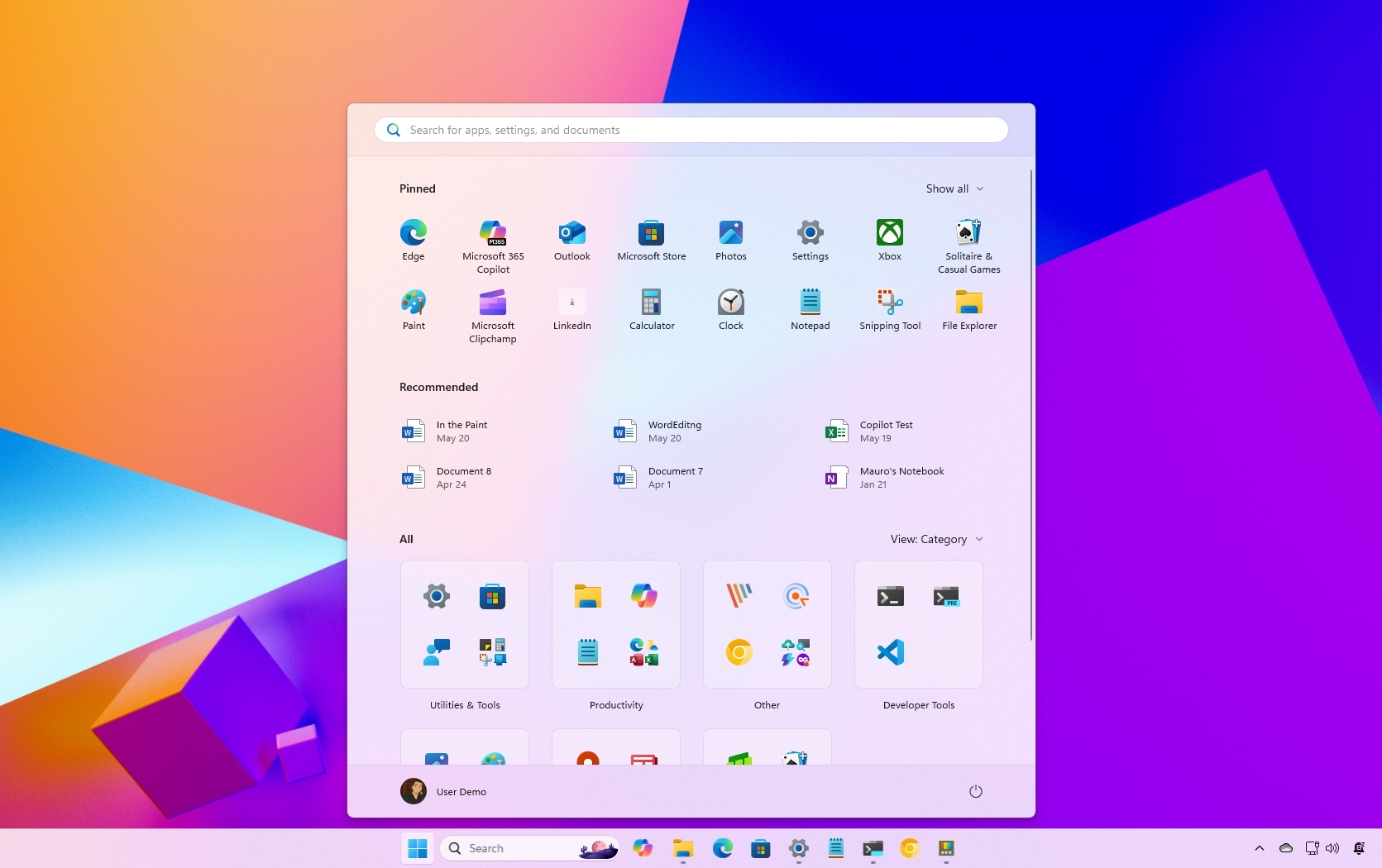
Windows updates often arrive quietly in the background, yet they can reshape how a computer feels, performs, and protects its user. The latest Windows updates—primarily focused on Windows 11’s feature releases and cumulative updates—introduce meaningful improvements in security, performance, productivity, and artificial intelligence integration. For everyday users, these changes may appear subtle at first glance, but they significantly enhance how the system operates under the hood.
According to the official documentation from Microsoft Support, each major update combines security patches, usability refinements, accessibility improvements, and new features designed to modernize the Windows experience. Instead of overwhelming users with technical language, this guide explains these features in simple terms, breaking down what changed, why it matters, and how to use the new tools effectively.
A Smarter Windows Experience with Built-In AI
One of the most discussed additions in recent updates is Windows Copilot, Microsoft’s built-in AI assistant for Windows 11. Copilot integrates directly into the desktop and works alongside apps, files, and system settings.
As described by Microsoft’s official Windows Copilot overview, the assistant can summarize content, adjust system settings, answer contextual questions, and assist with productivity tasks without switching between multiple apps. Unlike traditional virtual assistants, Copilot understands what’s happening on the screen and can respond accordingly.
What This Means in Practical Terms
Instead of manually navigating deep system menus:
- Users can ask Copilot to switch to dark mode
- Adjust accessibility settings
- Summarize a document
- Draft quick content inside supported apps
This reduces friction and improves workflow efficiency, especially for multitaskers and remote workers.
Industry coverage from The Verge’s Windows feature analysis highlights that Microsoft’s AI integration strategy aims to make the operating system proactive rather than reactive, helping users complete tasks faster without advanced technical knowledge.
Enhanced Security That Works Quietly in the Background
Security improvements remain a core focus in every Windows update. The latest versions strengthen:
- Phishing protection
- Smart App Control
- Hardware-based isolation
- Passkey support
According to guidance from the Cybersecurity & Infrastructure Security Agency (CISA), keeping operating systems updated is one of the most effective ways to prevent cyber threats. Windows now includes enhanced phishing detection inside Microsoft Defender SmartScreen, warning users if passwords are entered on suspicious websites.
Microsoft’s official Windows Security documentation explains that Smart App Control blocks untrusted or unsigned applications automatically, reducing the risk of malware infections without constant manual monitoring.
Why This Matters
Modern cyber threats target individuals just as aggressively as businesses. Automatic updates now include:
- Zero-day vulnerability patches
- Enhanced encryption protocols
- Updated virus definitions
- Firmware-level security updates
The result is a system that protects users passively without requiring advanced configuration knowledge.
Performance Improvements and Faster Updates
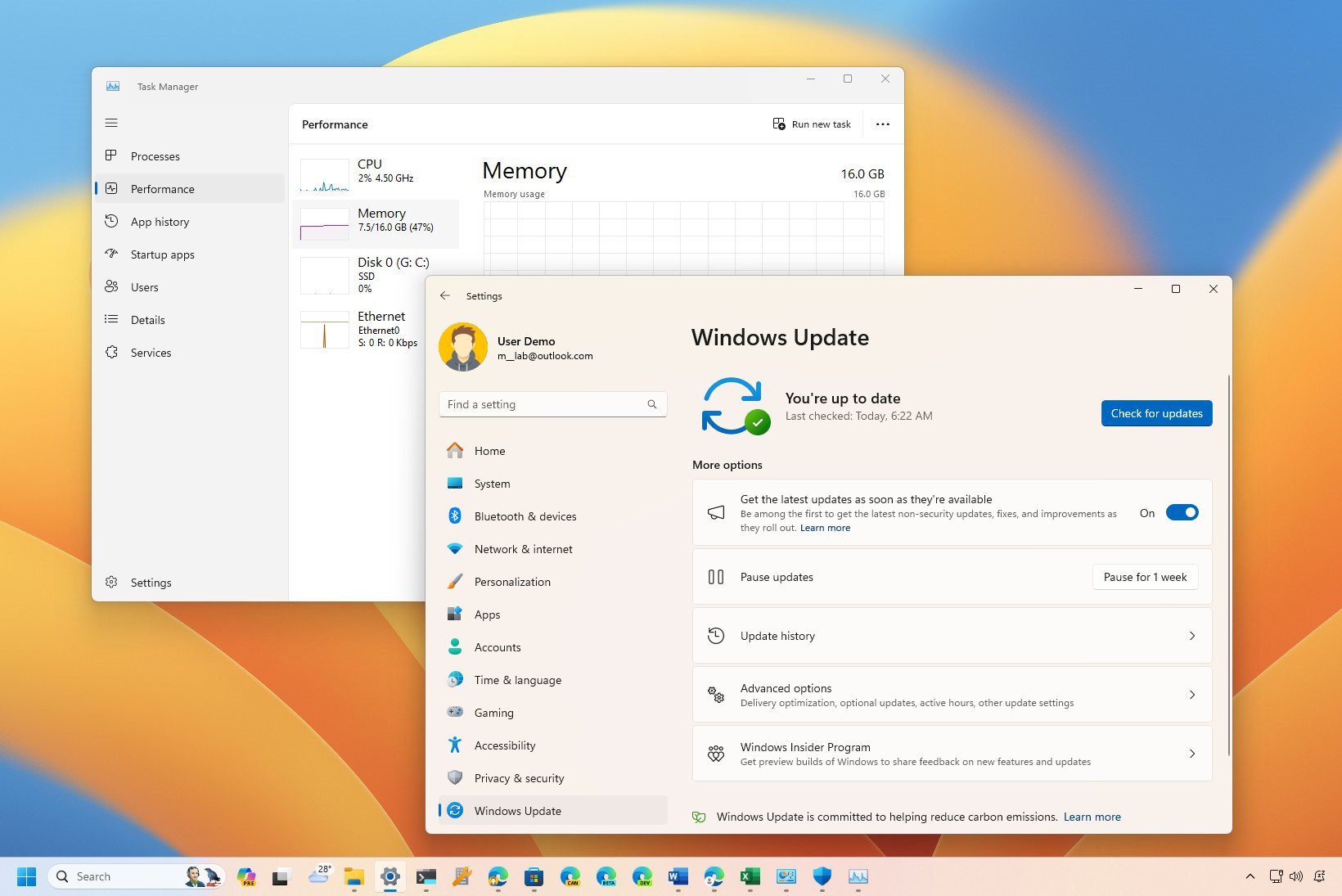
Windows updates once had a reputation for long installation times and unexpected restarts. Recent releases significantly improve update efficiency and system responsiveness.
According to performance data shared on the Microsoft Windows IT Pro Blog, update packages are now smaller, install faster, and require fewer restarts. Background optimization allows updates to download and prepare silently while the system remains usable.
Noticeable Improvements
- Faster boot times
- Improved SSD optimization
- Better memory management
- Reduced CPU usage during idle tasks
Technology analysis from ZDNet’s Windows update coverage confirms that Microsoft has prioritized reducing update friction, especially for business users who depend on uptime and system reliability.
For most users, the difference appears as smoother multitasking and fewer interruptions during work or entertainment.
File Explorer Gets Modernized
File Explorer has received long-awaited improvements, including tabbed browsing and enhanced search functionality.
Instead of opening multiple separate windows, users can now open multiple folders in tabs within a single File Explorer window. This small change dramatically improves workflow organization.
Microsoft’s feature documentation on Windows 11 File Explorer updates explains that the search function now delivers faster results and better indexing for cloud-based files stored in OneDrive.
Key Upgrades
- Tab support
- Improved right-click context menu
- Cleaner visual design
- Better OneDrive integration
For professionals managing many documents daily, this update reduces clutter and improves navigation speed.
Accessibility Enhancements for Inclusive Computing
Microsoft continues expanding accessibility tools, reflecting standards recommended by organizations like the World Wide Web Consortium (W3C) in their accessibility guidelines.
Recent updates introduce:
- Live Captions for system-wide audio
- Improved Narrator natural voices
- Voice Access for hands-free control
- Better high-contrast themes
The Microsoft Accessibility blog details how Voice Access allows users to control their PC entirely through speech commands without requiring internet connectivity.
These changes ensure that Windows remains usable for individuals with hearing, vision, or mobility impairments, aligning with global accessibility standards.
Energy Efficiency and Sustainability Improvements
Energy efficiency is becoming increasingly important. Microsoft’s sustainability initiative, detailed on the Microsoft Sustainability page, explains that Windows updates now include energy recommendations inside system settings.
Users can receive suggestions such as:
- Reducing screen brightness
- Adjusting sleep settings
- Enabling power efficiency mode
In enterprise environments, IT administrators can now schedule updates to align with low-carbon energy availability, reducing environmental impact.
This shift demonstrates a broader focus beyond performance—toward responsible computing.
Updated Settings and Cleaner Design
The Settings app continues replacing legacy Control Panel features. The new design is cleaner, more organized, and easier to navigate.
Recent updates add:
- A centralized “Home” dashboard
- Device health summaries
- Subscription management panels
- Storage recommendations
These changes simplify system management for non-technical users while maintaining advanced configuration options for professionals.
Feature Comparison Table: Before vs After Recent Updates
| Feature Area | Older Windows Experience | Latest Update Improvements |
|---|---|---|
| AI Assistance | No native integrated AI | Built-in Copilot with contextual assistance |
| File Explorer | No tab support | Tabbed browsing & improved search |
| Security | Basic phishing detection | Advanced SmartScreen + Smart App Control |
| Updates | Larger packages, longer installs | Smaller updates, faster background installs |
| Accessibility | Limited voice control | Full Voice Access & Live Captions |
| Energy Management | Manual adjustments | Built-in energy recommendations |
| Settings Interface | Split between Control Panel & Settings | Unified, modern dashboard |
This comparison highlights that updates are not just cosmetic—they represent structural system evolution.
Better Gaming Optimization
Gamers benefit from updates that enhance performance and compatibility. According to documentation on DirectX improvements from Microsoft, updates refine graphics APIs, improving rendering performance in supported games.
The Xbox app integration continues expanding, offering better cloud gaming access and controller support. System-level optimizations also reduce input latency and enhance frame stability.
These improvements help Windows remain a leading platform for PC gaming without requiring additional third-party utilities.
Improved Privacy Controls
Privacy transparency is another area receiving continuous upgrades. Windows now offers:
- Detailed app permission controls
- Clearer microphone and camera indicators
- Expanded diagnostic data settings
Microsoft’s official Privacy Dashboard explanation outlines how users can view and manage stored activity data linked to their account.
This increased transparency empowers users to control how their data is collected and shared.
Seamless Cloud and Device Integration
Integration with Microsoft services such as OneDrive and Microsoft 365 has become more seamless. Files sync automatically, device backups occur in the background, and cross-device experiences improve.
According to the official OneDrive documentation, file recovery and version history features protect against accidental deletion and ransomware encryption.
This unified ecosystem ensures that files remain accessible across devices without complex setup.
Frequently Asked Questions (FAQ)
1. Are Windows updates really necessary?
Yes. Updates include security patches that protect against newly discovered vulnerabilities, along with performance improvements and feature enhancements.
2. Can updates slow down older computers?
Initial indexing may temporarily increase background activity, but long-term performance optimizations generally improve system stability.
3. Is Windows Copilot mandatory?
No. Copilot can be enabled or disabled based on user preference.
4. How often does Microsoft release updates?
Security updates are typically released monthly, while major feature updates arrive annually.
5. Is it safe to delay updates?
Short delays may be manageable, but long-term postponement increases security risk.
6. Do updates affect installed software?
Most applications remain compatible. Major version changes may require updated drivers or patches.
7. How can update interruptions be minimized?
Active Hours can be configured to prevent restarts during working periods.
8. Are updates free?
Yes, updates for supported Windows versions are included at no additional cost.
Practical Tips for Managing Windows Updates Effectively
To maximize benefits while minimizing inconvenience:
- Enable automatic updates
- Configure Active Hours
- Restart promptly when prompted
- Back up critical data regularly
- Review update notes before major releases
The official Windows Release Health dashboard provides real-time update status information, helping users monitor known issues and compatibility notes.
Final Thoughts: Why These Updates Matter More Than Ever
Windows updates are no longer just routine patches; they represent a strategic transformation of the operating system into a smarter, more secure, and more efficient computing platform. From AI-powered assistance and advanced security defenses to improved accessibility and sustainability initiatives, each update builds toward a modern digital ecosystem.
The cumulative effect is subtle but powerful. Systems boot faster. Threats are blocked more effectively. Files organize more efficiently. Accessibility tools reach broader audiences. Cloud integration becomes seamless. AI enhances productivity without overwhelming users.
Keeping Windows updated ensures access to these improvements while maintaining protection against emerging cybersecurity risks. Rather than viewing updates as interruptions, they should be seen as continuous upgrades that refine and strengthen the computing experience.
By understanding what these updates offer and how to use them effectively, users gain greater control over their devices, improve workflow efficiency, and maintain long-term system health.

